
- 01
Get a link from Teams
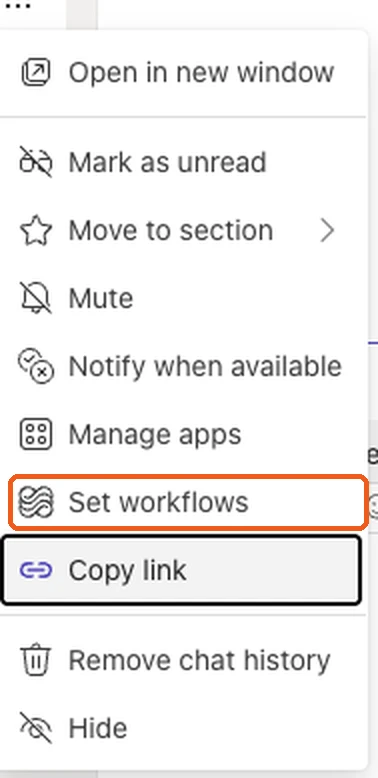
In Teams, open the channel or group chat the updates should go to. Select ⋯ → Workflows (in a group chat it is called Set workflows), choose Send webhook alerts to a channel (or Send webhook alerts to a chat), finish the steps and copy the link Teams gives you. It starts with https:// and contains powerplatform.com or logic.azure.com.
- 02
Open the project's Teams settings
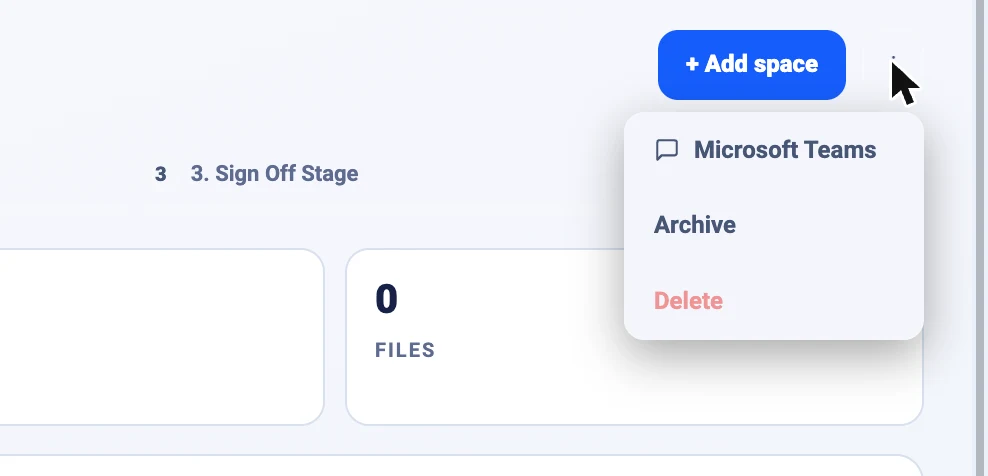
In Integrio, open the project. Select the ⋮ menu at the top right, next to + Add space, and choose Microsoft Teams.
- 03
Paste the link and choose what to post
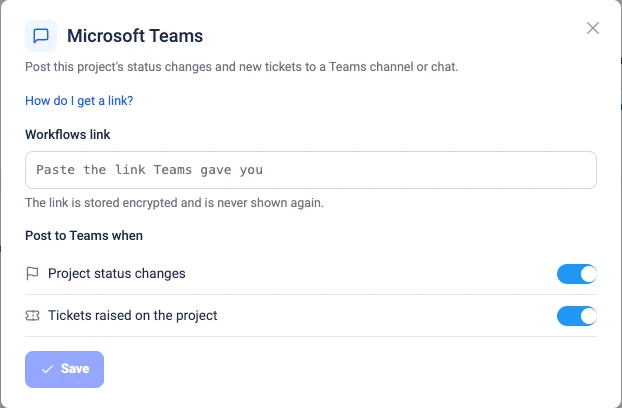
Paste the link into Workflows link. Leave Project status changes and Tickets raised on the project switched on, or turn off the ones you don't want, then select Save.
- 04
Send a test
Select Send test and check that a card arrives in the Teams channel or chat. If it doesn't, the dialog shows what Teams reported.
- 05
Switch it on
Once the test card has arrived, turn the connection on. From then on every status change, and every new ticket raised on the project, appears in Teams as a card with an Open project button.
Good to know
- ✓Don't use the chat's Copy link: that only opens the chat in Teams. Integrio needs the Workflows link.
- ✓Treat the Teams link like a password: anyone who has it can post into that channel. Integrio stores it encrypted and never shows it again.
- ✓Replacing the link switches the connection off until you send a new test.
- ✓Each project connects to one channel or chat. To stop posting, turn it off or choose Disconnect.
- ✓Teams shows the cards as coming from Workflows; that is how Microsoft labels messages sent through a Workflows link.
- ✓Customer portal users can't see or change a project's Teams connection.
Still stuck?
Send us the project and the step you reached, and we’ll take a look.