
- 01
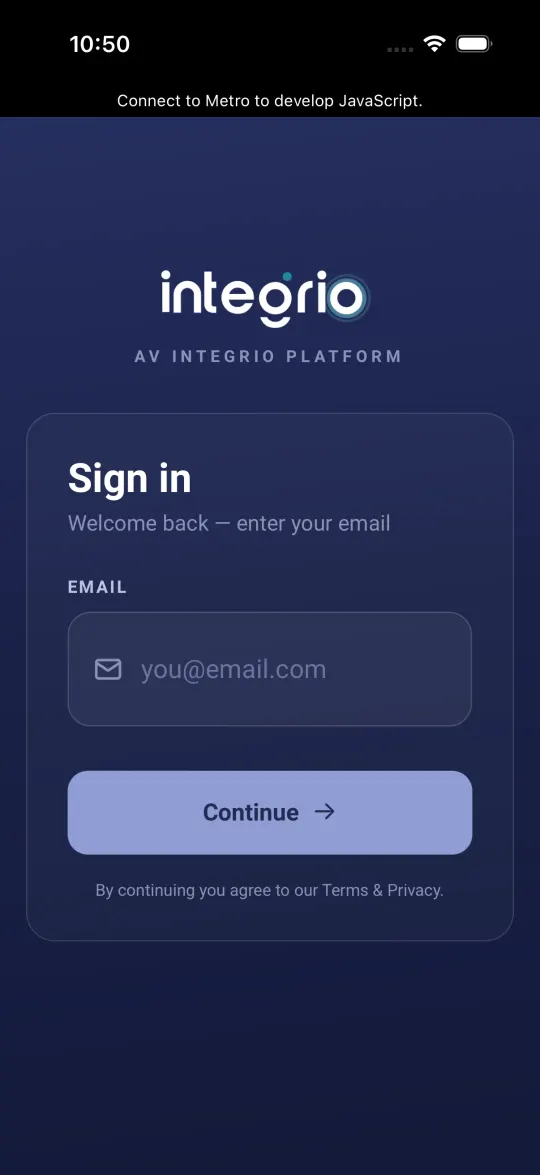
Sign in
Open the Integrio app, enter your email and tap Continue, then enter your password and tap Sign in. No password yet? Tap Email me a sign-in code instead and enter the code from your inbox.
- 02
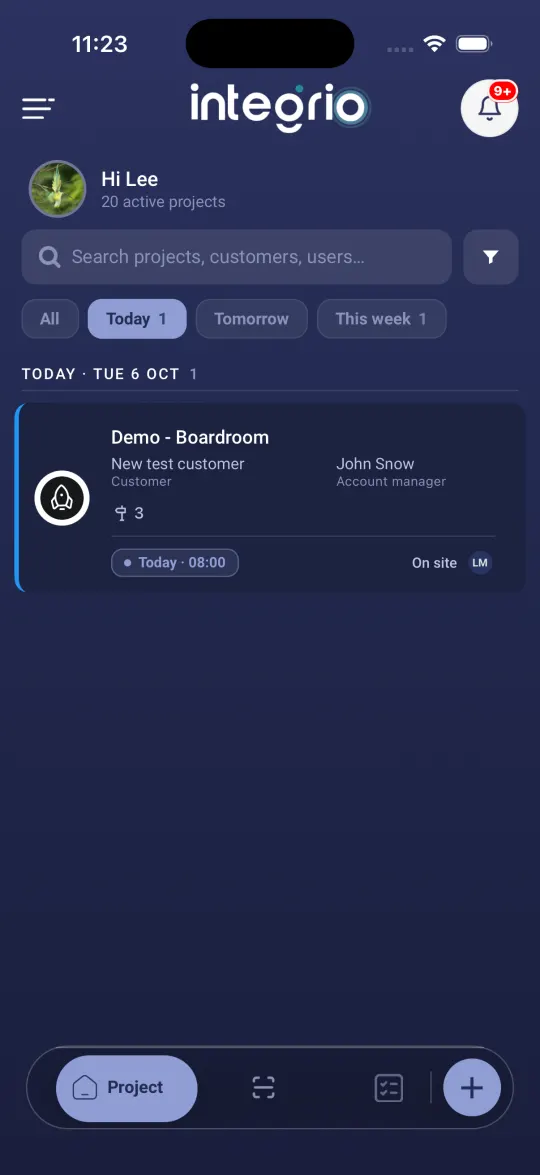
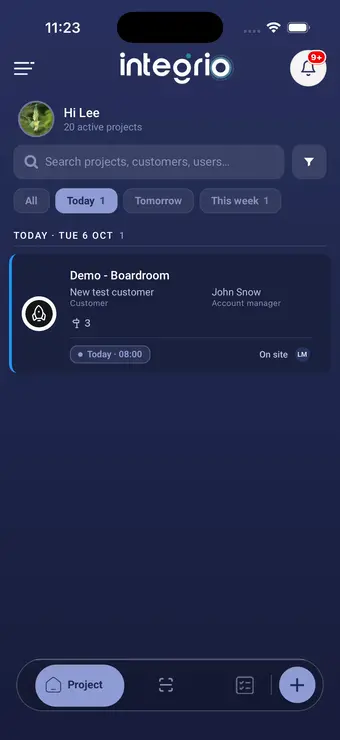
Show today’s jobs
The Project tab opens first and lists the projects you are assigned to. Tap Today to show only the jobs you are booked on today. Each card shows the customer, the account manager and the booking time.
- 03
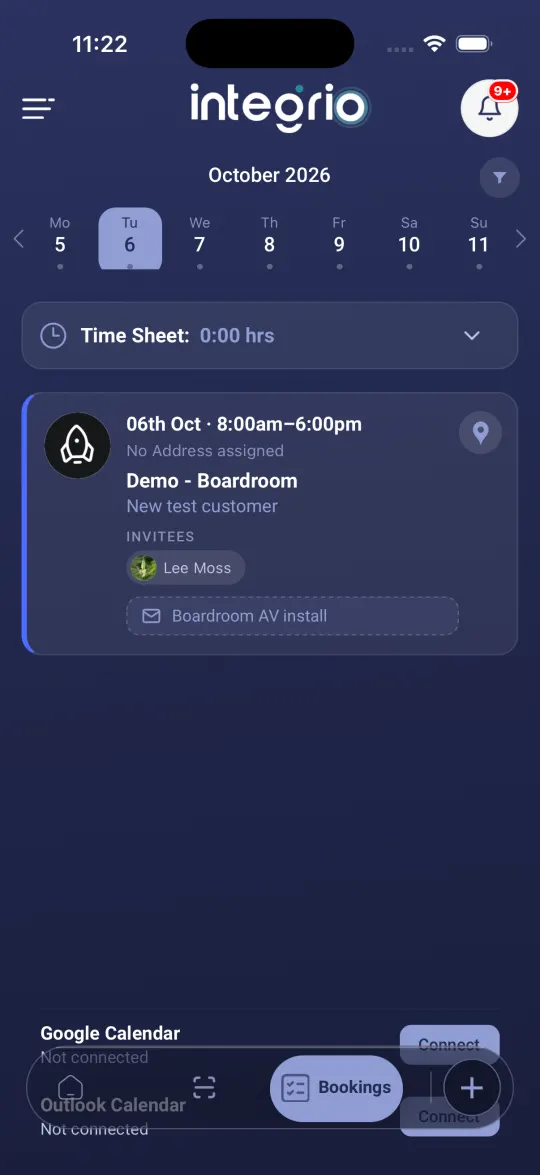
Open your diary
Tap Bookings in the bar at the bottom of the screen, then tap a day on the week strip. Each booking shows the date and times, the site address, the project and customer, everyone booked on the job under Invitees, and the booking note from the office.
- 04
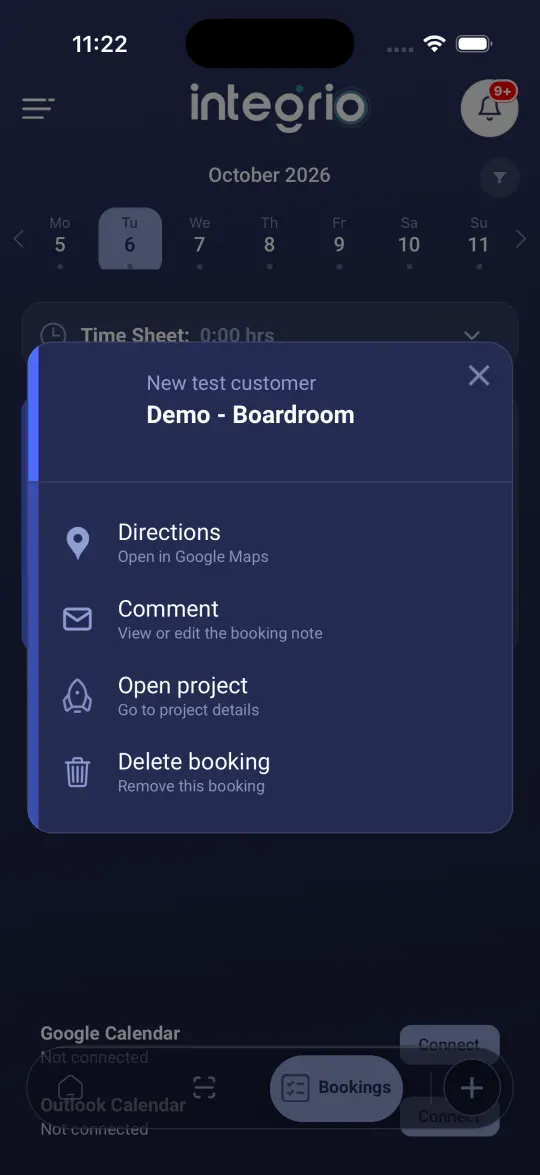
Get directions or read the note
Tap the pin on a booking for directions to site. Press and hold the booking for Directions, Comment (read or add to the booking note), Open project and Delete booking. Only delete a booking if the office asks you to.
- 05
Open the project
Tap the booking card to open its project. You land on the same project screen as from the Project tab.
Good to know
- ✓You only see projects you have been assigned to. If a job is missing, ask the office to add you to it.
- ✓A project drops off your list once it has been signed off.
- ✓Connect Google or Outlook from an empty day on the Bookings tab to keep your own calendar in step.
Still stuck?
Send us the project and the step you reached, and we’ll take a look.