
A project is split into spaces: the rooms or areas on site. Most of your work happens inside a space, where its products, photos and forms live.
- 01
Read the project details
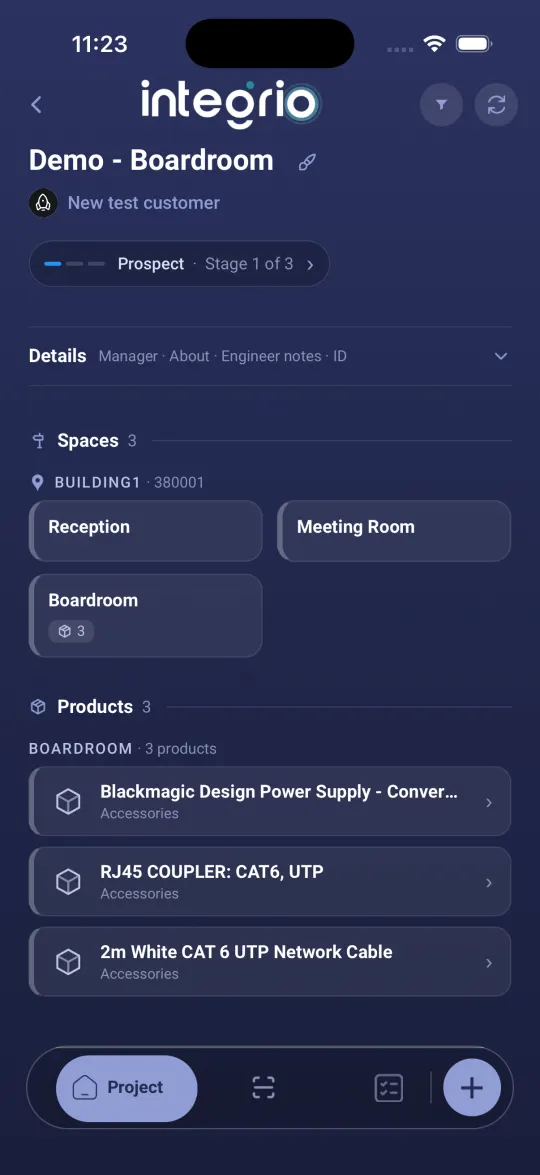
Open the project and tap Details to see the manager, notes about the job and the Engineer notes. Read the engineer notes before you start.
- 02
Find the space
Under Spaces, spaces are grouped by site and floor. The small counts on each tile show how many photos, products and forms it holds.
- 03
Open it
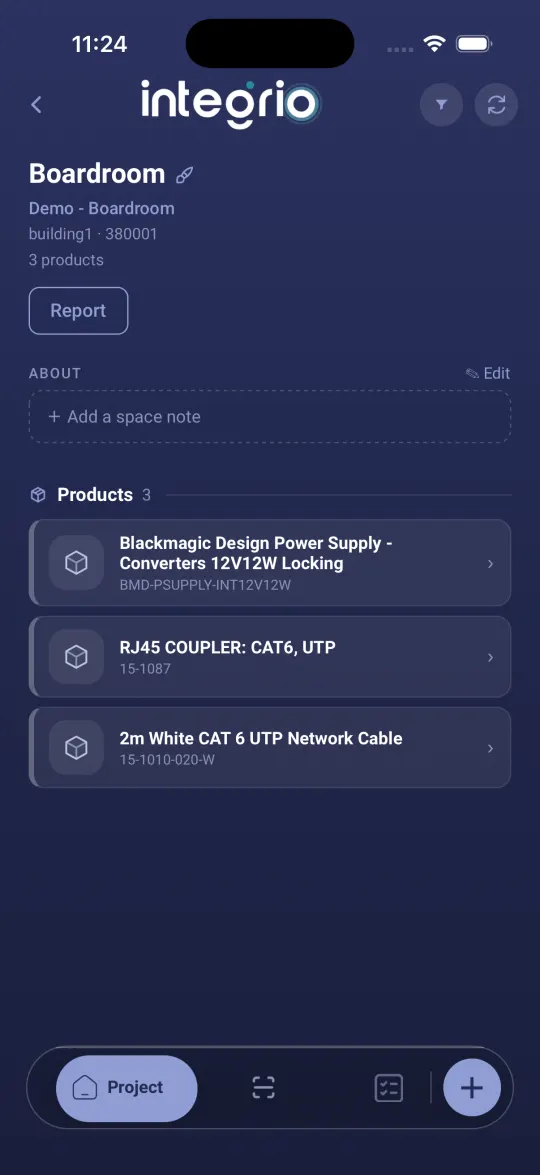
Tap the space. You see its notes, its products, its photos and anything else added to it. The + button at the bottom right adds new things to this space.

- 04
Mark it complete when you finish
Back on the project screen, press and hold the space tile and tap Mark as complete.
Good to know
- ✓Press and hold a space tile and choose Pin to top to keep the room you are working in at the top of the list.
Still stuck?
Send us the project and the step you reached, and we’ll take a look.