
- 01
Open the product
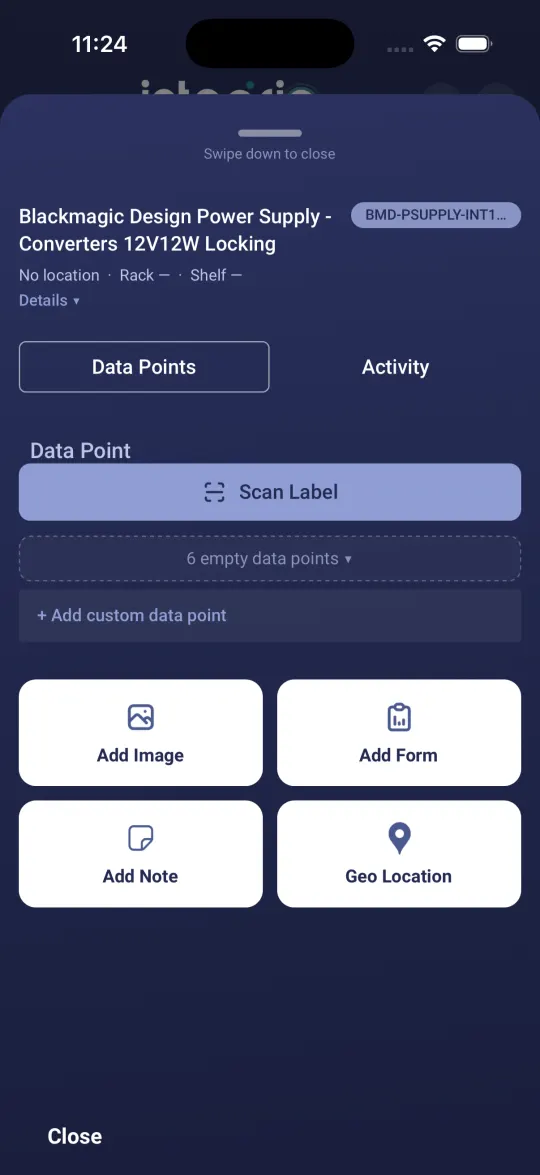
In the space, tap the product. Its card shows the model code, location, rack and shelf. Tap Details for the model and manufacturer.
- 02
Show the fields
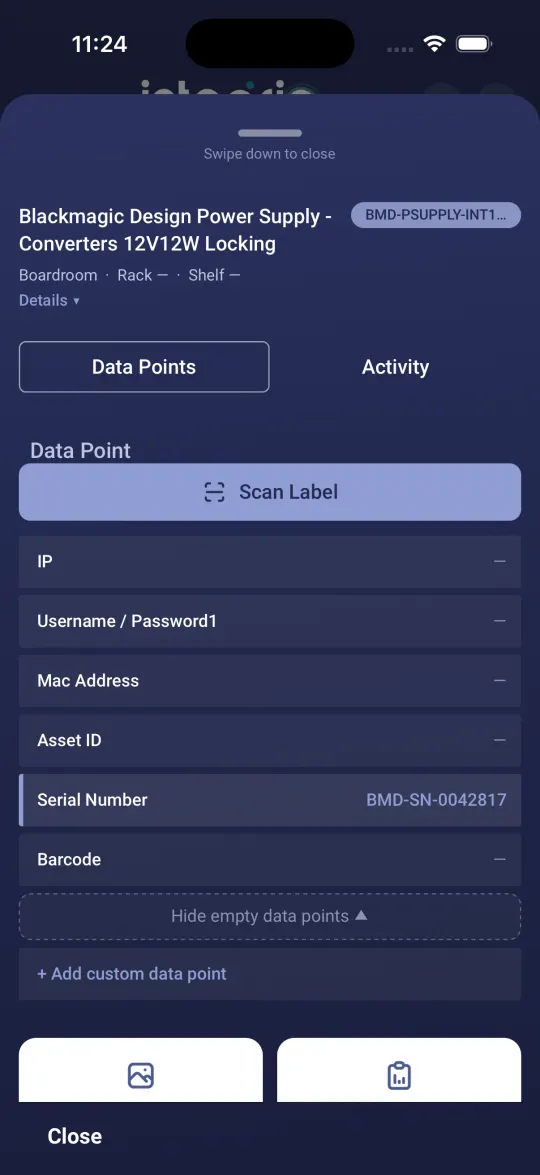
On the Data Points tab, tap the empty data points line to show every field you can fill in. Your company chooses the fields. Common ones are IP, Username / Password, MAC Address, Asset ID, Serial Number and Barcode.
- 03
Type a value
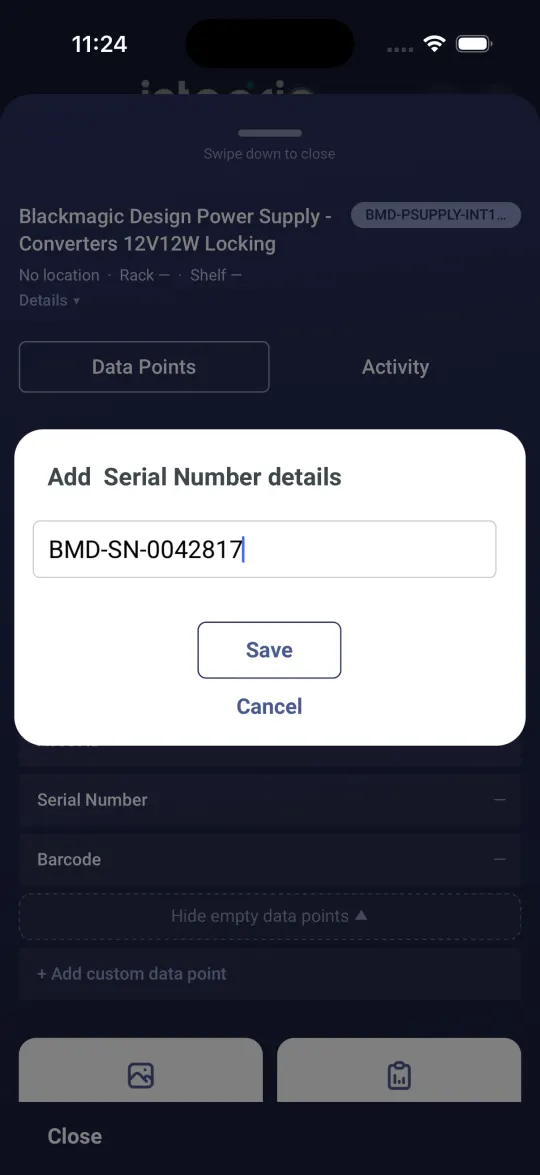
Tap a field such as Serial Number, type the value and tap Save.
- 04
Check it saved
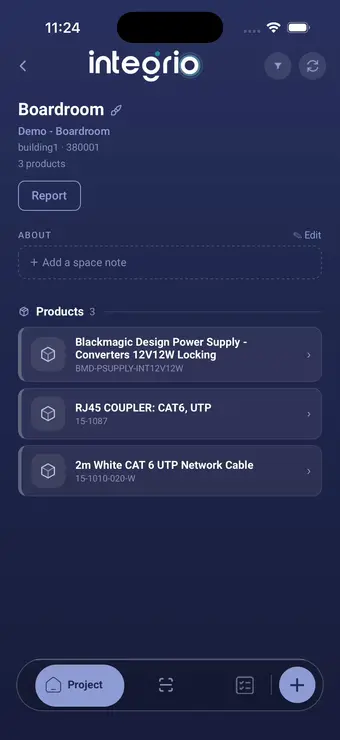
The value now shows next to the field, and the product’s location changes to the space you are in.
- 05
Or scan the label
Tap Scan Label. Point the camera at the product label, then tap Save · Mac or Save · Serial on the value it found, or Assign… to pick the field yourself. If a value will not scan, take a photo with the shutter button and the app reads it for you.
- 06
Mark the product complete
In the space’s product list, press and hold the product and tap Mark as complete. It then shows DONE.
Good to know
- ✓Tap + Add custom data point to record anything your company’s fields do not cover.
Still stuck?
Send us the project and the step you reached, and we’ll take a look.