
- 01
Sync first
Check the sync button at the top right of the project is not red. If it is, tap it and wait for everything to upload.
- 02
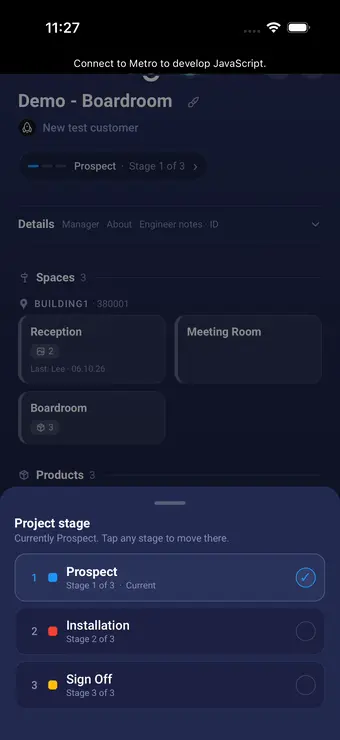
Open the stages
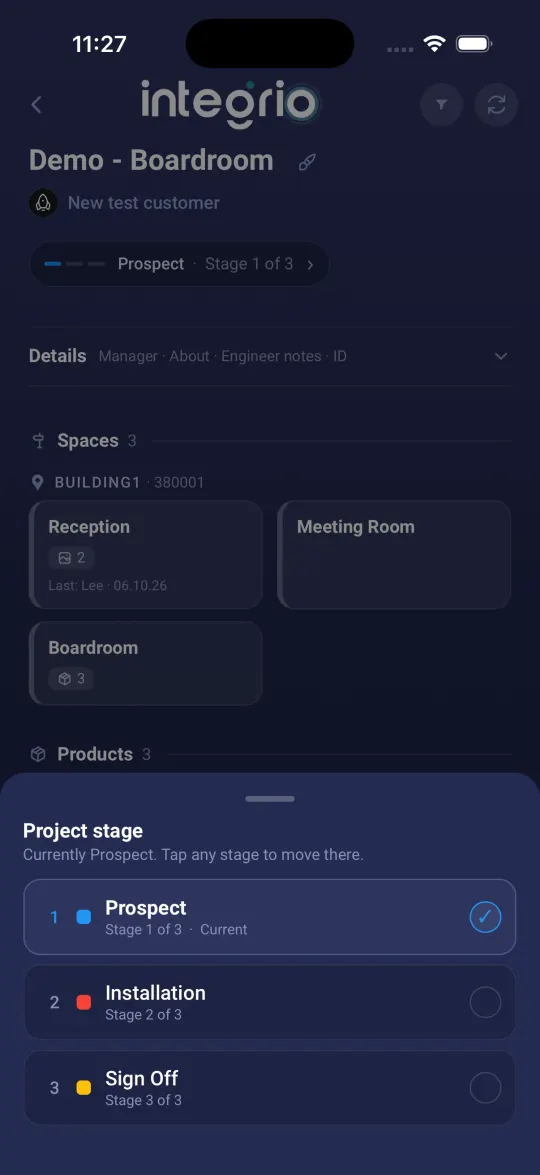
Tap the stage line under the project name, such as Installation · Stage 2 of 3. The Project stage list opens.
- 03
Choose the last stage
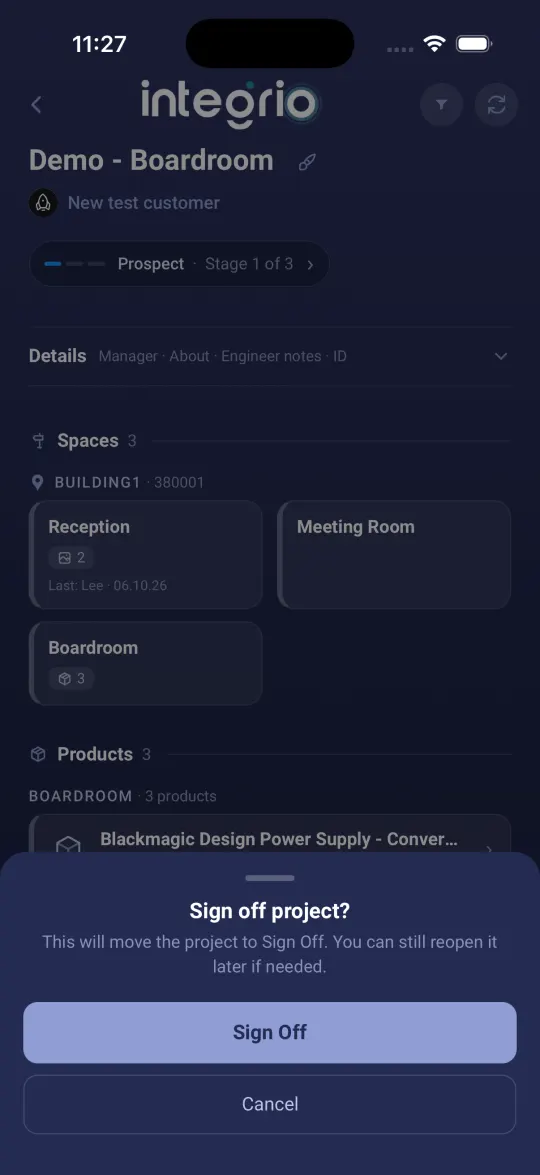
Tap the last stage. Here it is Sign Off; your company may use a different name. When Sign off project? appears, tap Sign Off.
- 04
Fill in the form with the customer
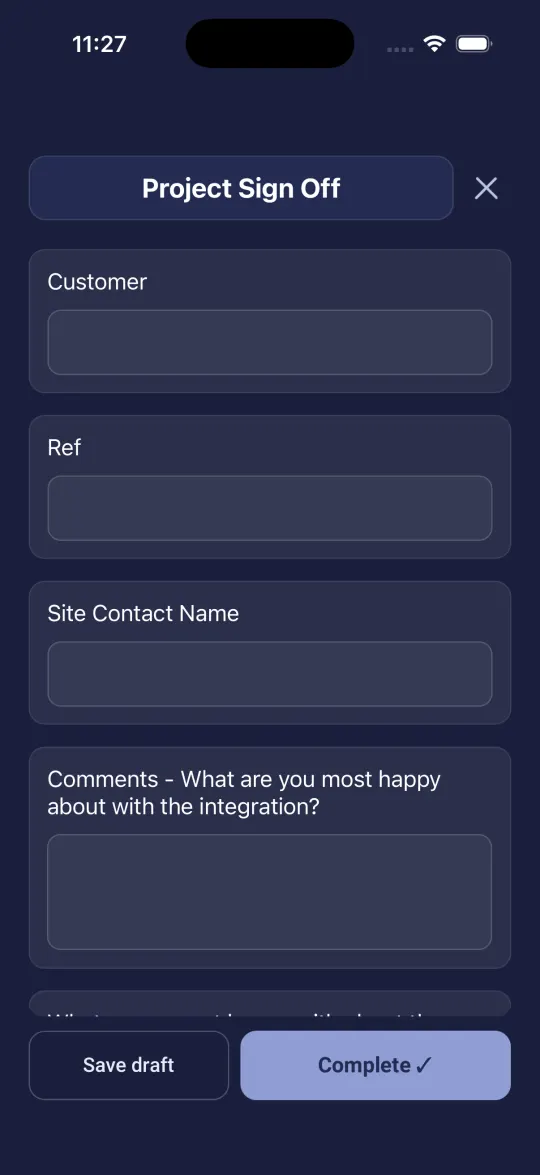
The sign-off form opens. Fill it in with the customer. Fields marked * must be filled in.
- 05
Capture the signature
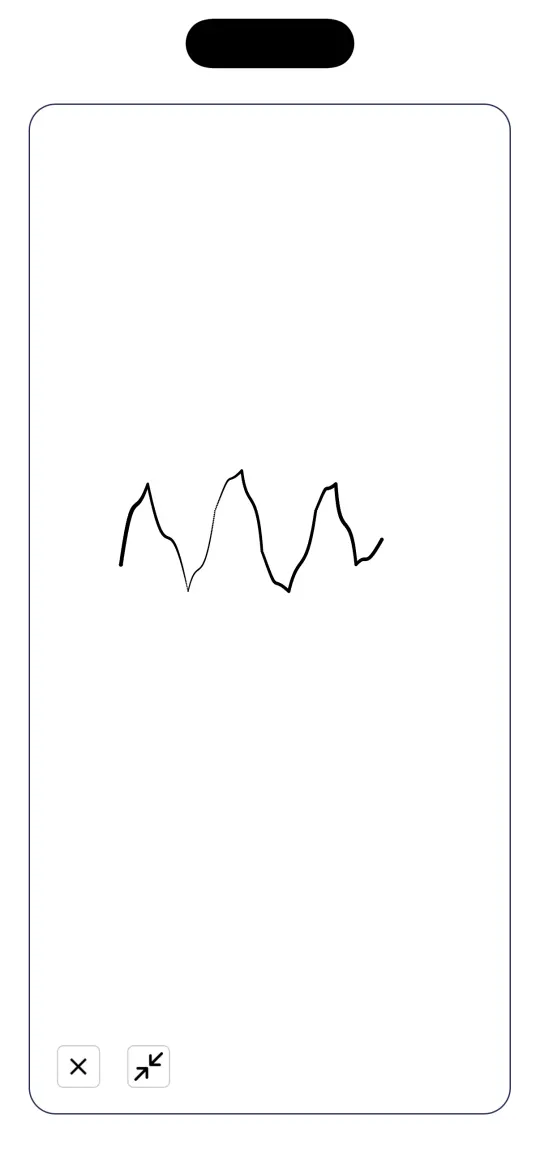
Tap Tap to sign. The signing pad fills the screen. The customer signs with a finger, then tap the arrows button at the bottom left to go back to the form.
- 06
Complete it
Tap Complete. You see Sign Off complete and a PDF and CSV are emailed out. Tap Close.
Good to know
- ✓Save draft keeps the answers but does not sign the project off. Use it if the customer is not available yet.
- ✓Signed off by mistake? Call the office. They can move the project back to an earlier stage.
- ✓If the app says no sign-off form is set, the office needs to choose one under Settings, then Projects.
Still stuck?
Send us the project and the step you reached, and we’ll take a look.