
Every printed Proof of Delivery carries a QR code. Scan it with your phone’s camera to open a page that files your photo of the signed sheet in the project’s PODs folder. No login is needed.
- 01
Scan the QR code
Lay the signed sheet flat. Point your phone’s normal Camera app at the QR code printed on it and tap the link that appears.
- 02
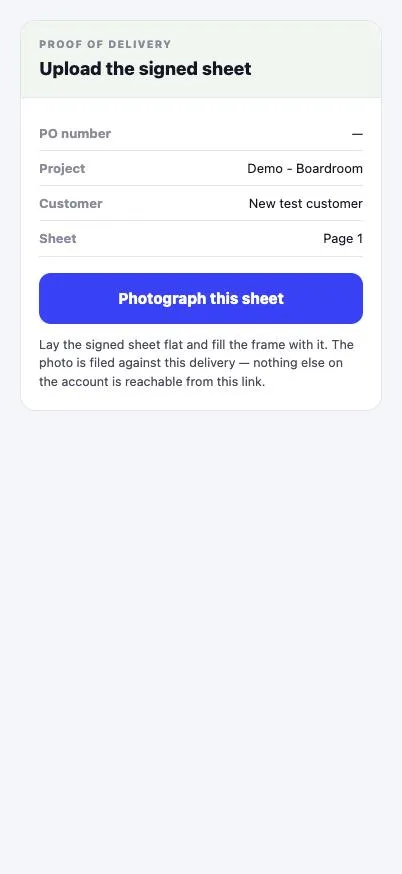
Check the delivery
A page opens headed Upload the signed sheet. Check the project, customer and page number are right.
- 03
Photograph the sheet
Tap Photograph this sheet. Fill the frame with the sheet and take the photo. Tap Retake if it is blurry or the signature is cut off.
- 04
Add the names and upload
Type the name of the person who signed in Signed by, and your own name in Your name. Tap Upload this photo. When you see Saved as … in the project’s PODs folder, it is done.
Good to know
- ✓Every page of a POD has its own QR code. Photograph each page, or tap Photograph another sheet after uploading.
- ✓In the latest version of the Integrio app you can also scan the code from the Scan tab, which files the photo under your name.
- ✓If the page says the code is no longer valid, ask the office for a fresh POD.
Still stuck?
Send us the project and the step you reached, and we’ll take a look.