
- 01
Find the contact on the booking
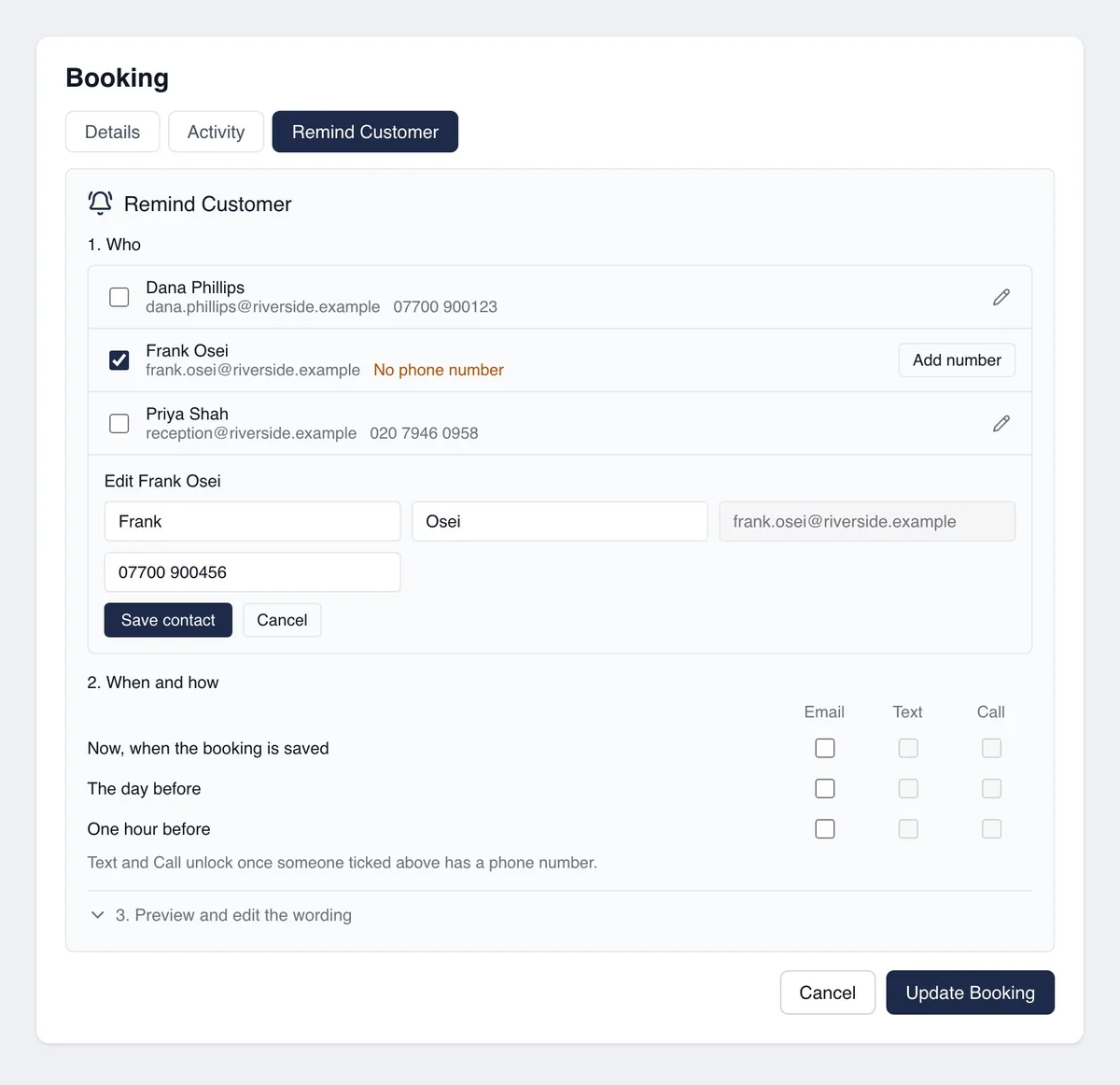
Open the booking and select Remind Customer. In the Who list, a contact with no number shows No phone number.
- 02
Add or change the number
Select Add number, or the pencil icon to change an existing number. Enter the number and select Save contact. It is saved to the contact, so it is there for every future booking.
- 03
Add a new contact
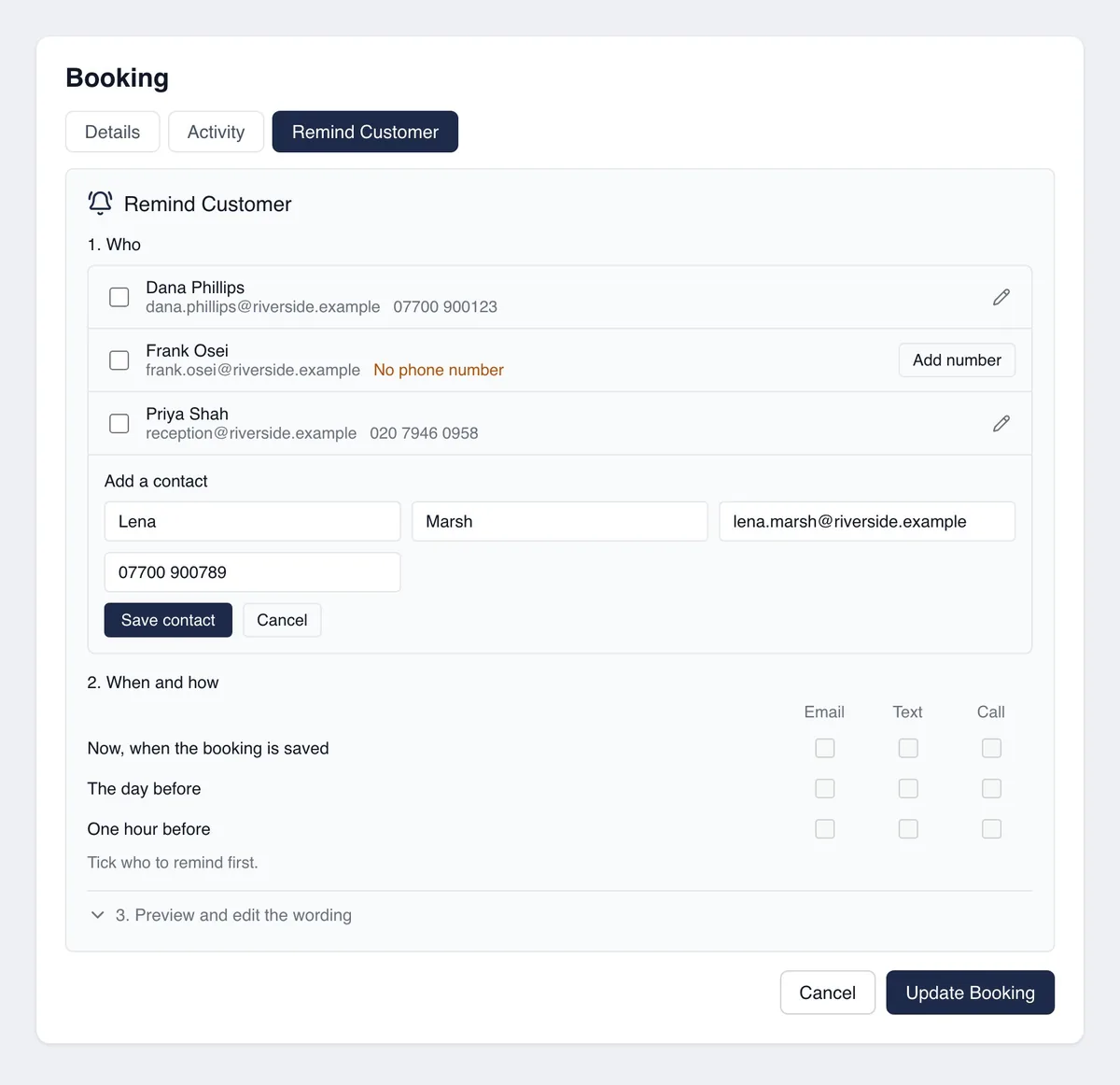
Select Add contact, enter their first name, last name, email address and phone number, then select Save contact. The new contact is added to the customer and ticked for this booking.
- 04
Or use the customer record
Go to Customers, open the customer, select the Users tab and open the contact. Enter the number in Mobile / Phone and select Save.
- 05
Send to a number without saving it
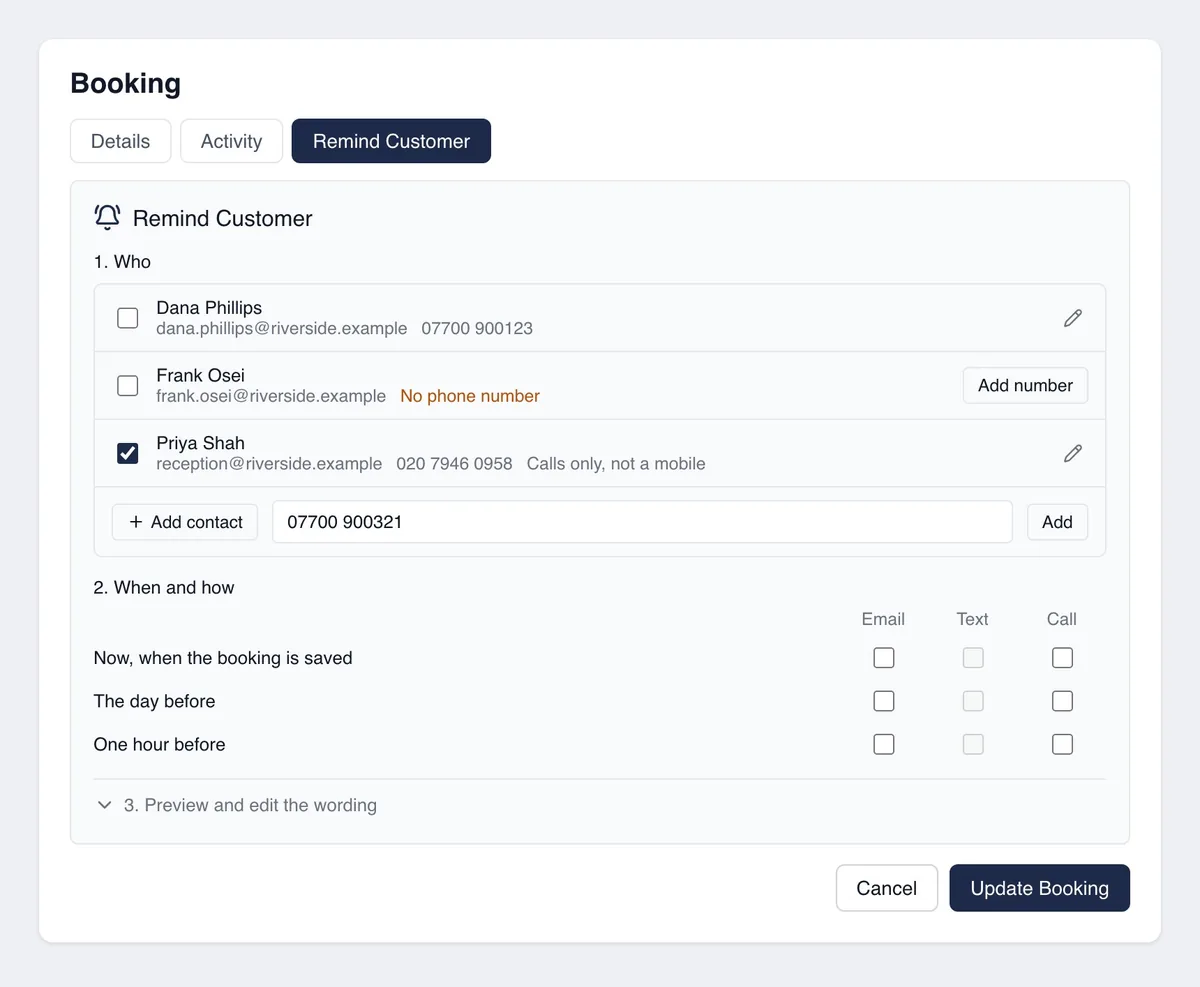
For a number you only need once, type it into the box at the bottom of the Who list and select Add. It is used for that booking only.
Good to know
- ✓A UK mobile (07) can be texted and called. A landline (01, 02 or 03) can be called but not texted, and shows as "Calls only, not a mobile".
- ✓Type the number with or without spaces, and with or without +44.
- ✓An existing contact's email address cannot be changed from the booking, because it is their sign-in.
- ✓If you see "You are not allowed to change this customer's contacts", ask someone who manages users in your company.
Still stuck?
Send us the project and the step you reached, and we’ll take a look.