
- 01
Open the Remind Customer tab
Open the booking, or start a new one and choose the project, then select Remind Customer. The tab is only on project bookings: manual bookings and annual leave have no customer to remind.
- 02
Tick who to remind
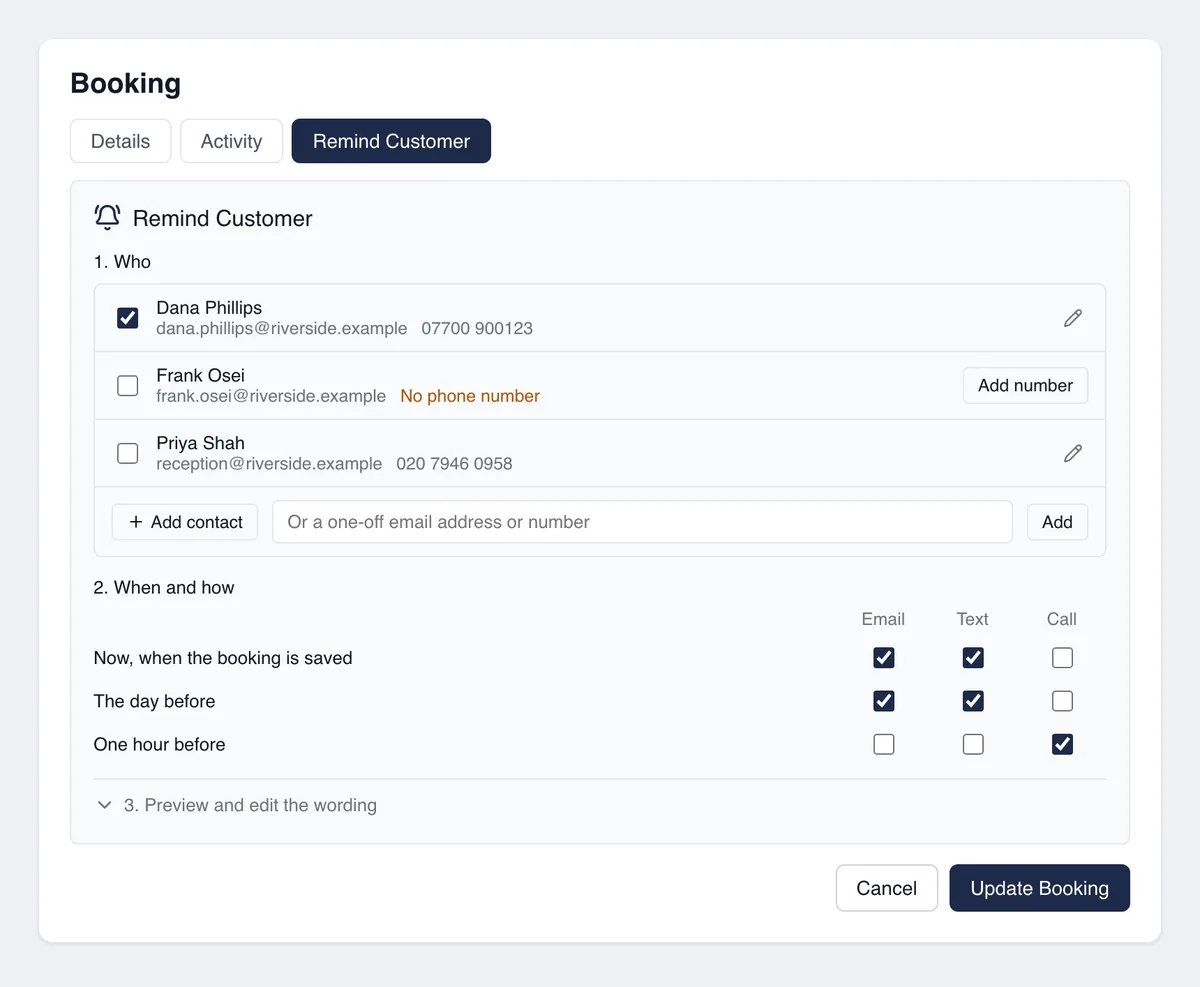
Step 1, Who, lists the customer's contacts with their email address and phone number. Tick the people to remind. You can also type a one-off email address or number at the bottom of the list.
- 03
Choose when and how
Step 2, When and how, is a grid. Each row is a moment: now when the booking is saved, the day before (24 hours before the start) and one hour before. Each column is a way to reach them: Email, Text and Call. Tick any mix.
- 04
Check Text and Call are available
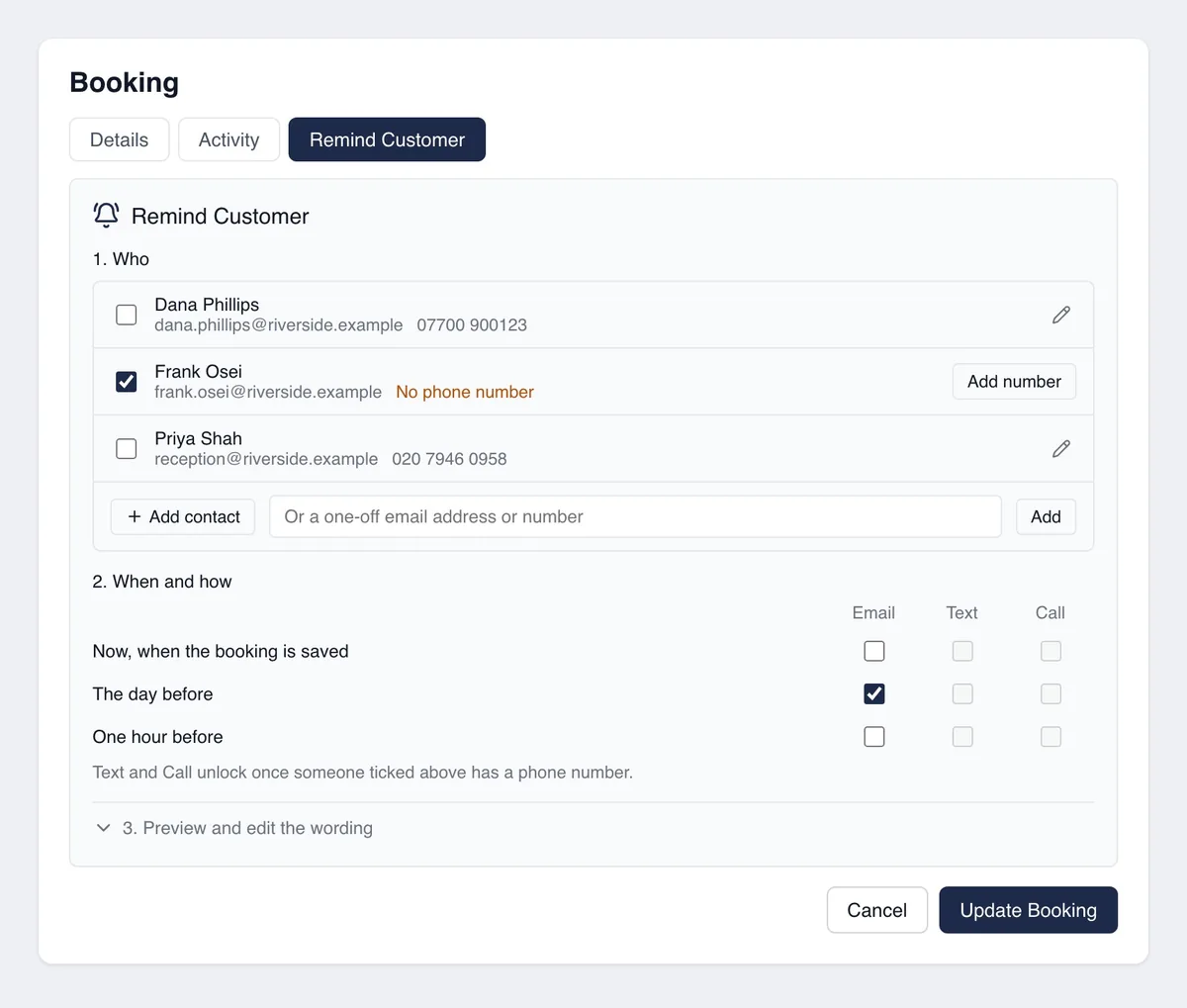
Text and Call stay greyed out until someone you have ticked has a phone number. If you only see an Email column, text and call reminders are not switched on for your company yet.
- 05
Check or change the wording
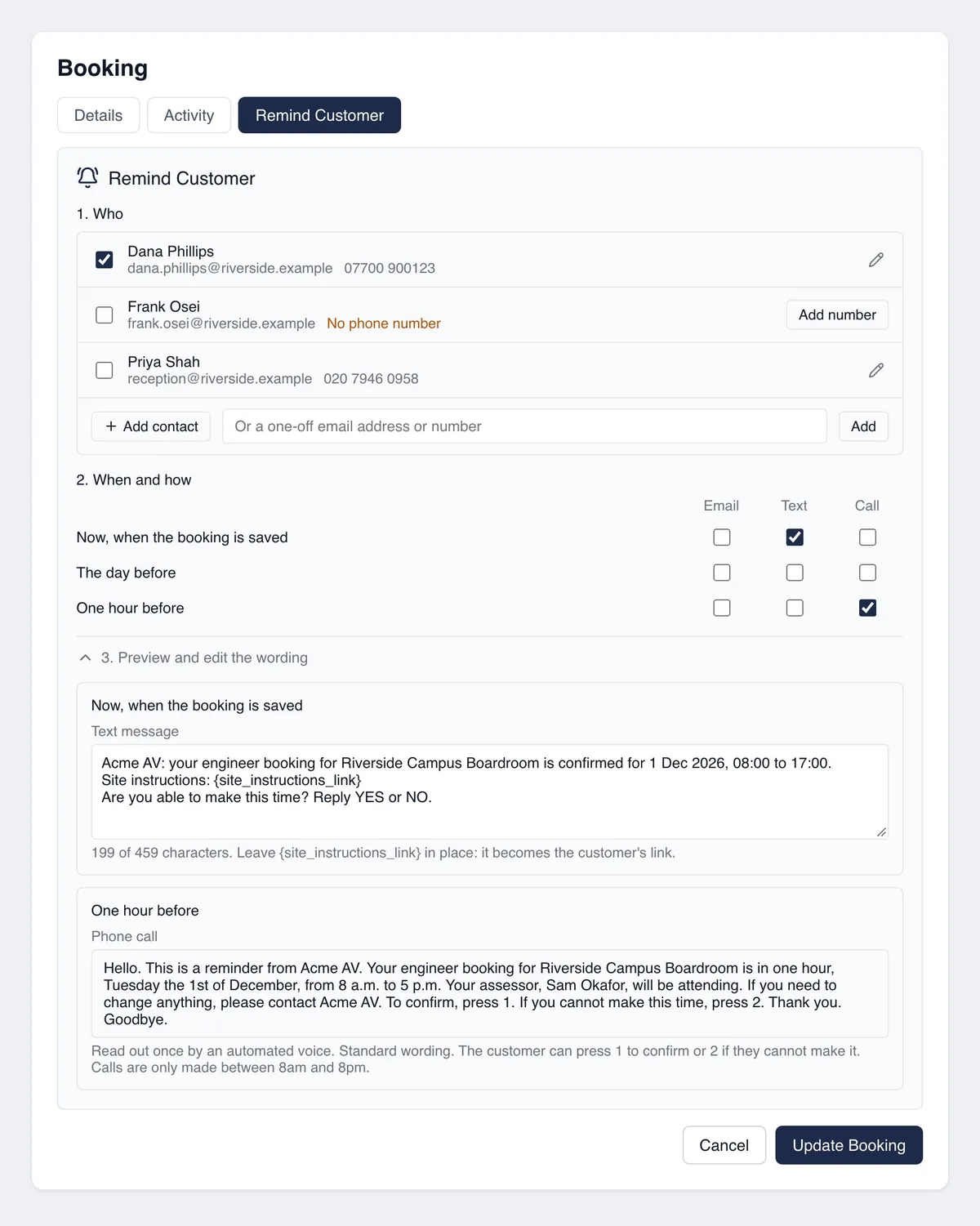
Select Preview and edit the wording to see what each ticked reminder will say. For a reminder sent now you can edit the email and the text. Later reminders and every call use the standard wording. Leave {site_instructions_link} in place: it becomes the customer's own secure link.
- 06
Save the booking
Select Create Booking or Update Booking. This is the moment reminders are sent or scheduled. Ticking a box on its own sends nothing.
- 07
Come back and add more
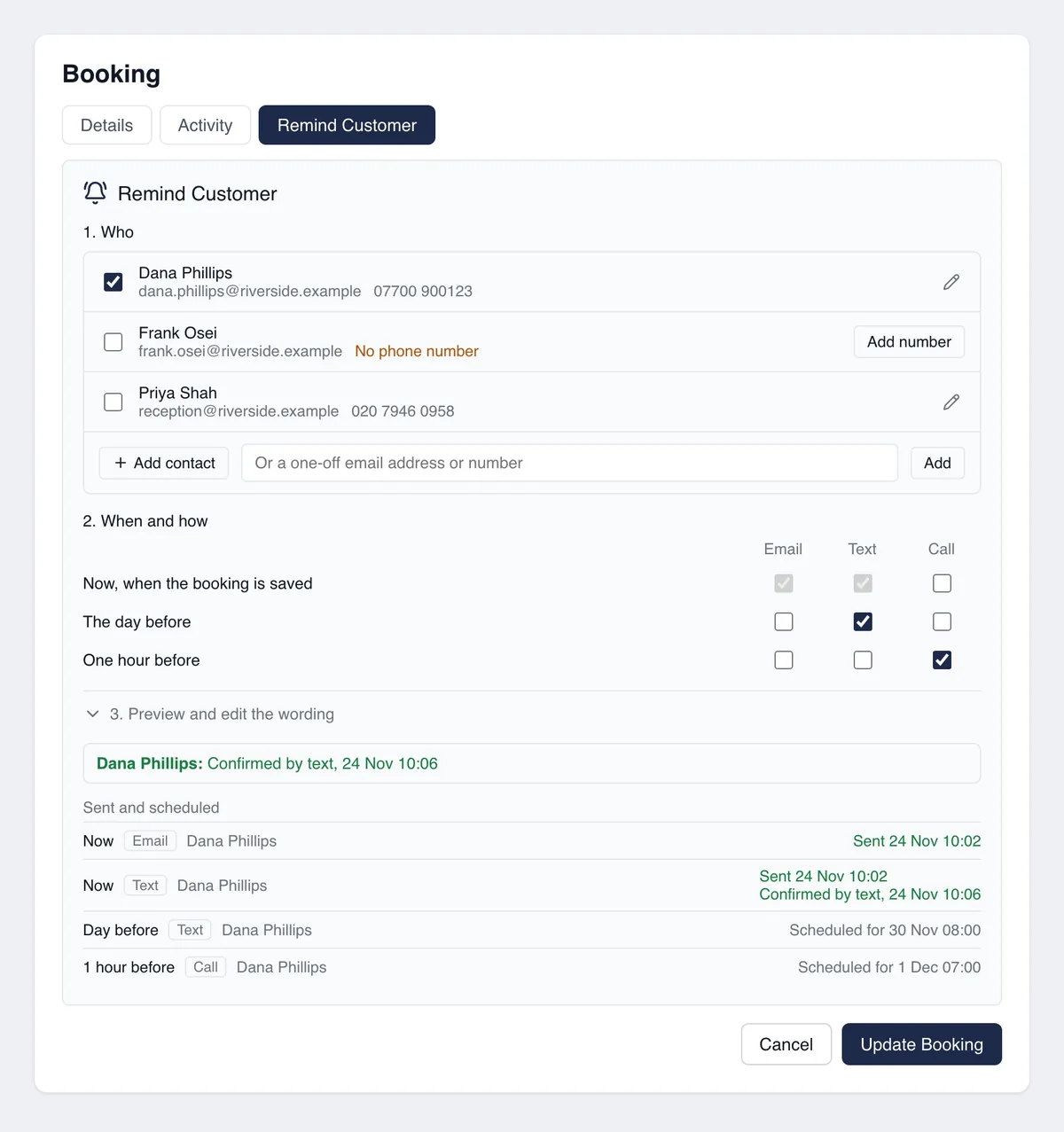
Open the saved booking and go to Remind Customer. The people being reminded are already ticked, the grid shows what is set, and Sent and scheduled lists every reminder. Tick another box, for example a call one hour before, and select Update Booking. Untick a box and save to cancel a reminder that has not gone yet.
Good to know
- ✓The text asks "Are you able to make this time? Reply YES or NO." and the call asks the customer to press 1 to confirm or 2 if they cannot make it.
- ✓The call names the staff added as attendees on the booking, for example "Your assessor, Sam Okafor, will be attending."
- ✓Calls are only made between 8am and 8pm UK time. For a booking that starts at 8am, use a text or email for the one-hour reminder.
- ✓If a reminder's time has already passed when you save, it is sent straight away.
- ✓Your monthly allowance of texts and calls is only mentioned on the booking when it is running low or used up.
Still stuck?
Send us the project and the step you reached, and we’ll take a look.