
Every reminder asks the customer whether they can make the time. Their answer comes back to Integrio, shows on the booking and is emailed to whoever created it.
- 01
Know how customers answer
By text they reply YES or NO. On a call they press 1 to confirm or 2 if they cannot make it. In an email they select the confirm link or the cannot make it link.
- 02
Open the booking
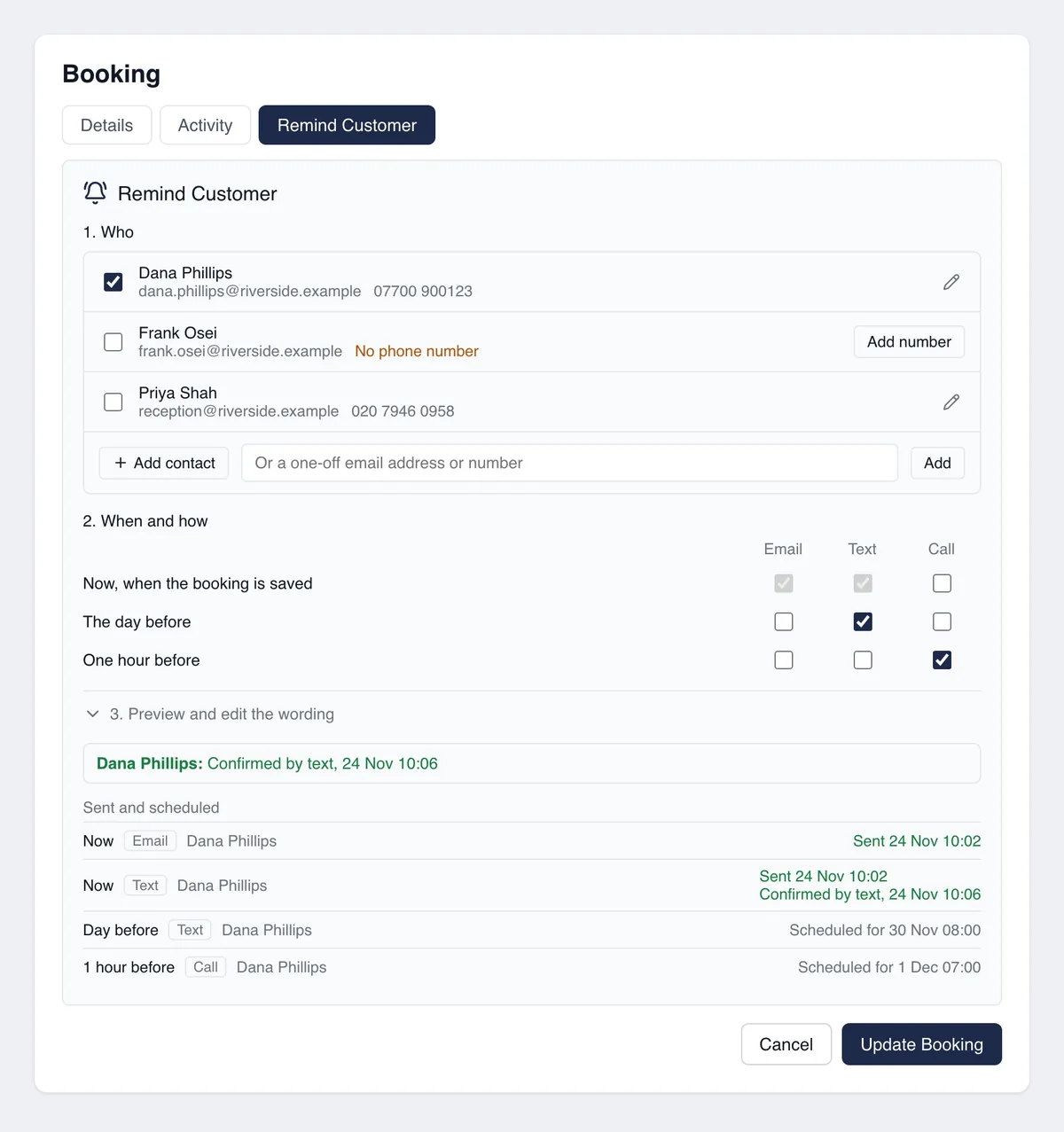
Open the booking and select Remind Customer. The most recent answer shows in a banner, for example "Dana Phillips: Confirmed by text".
- 03
Check each reminder
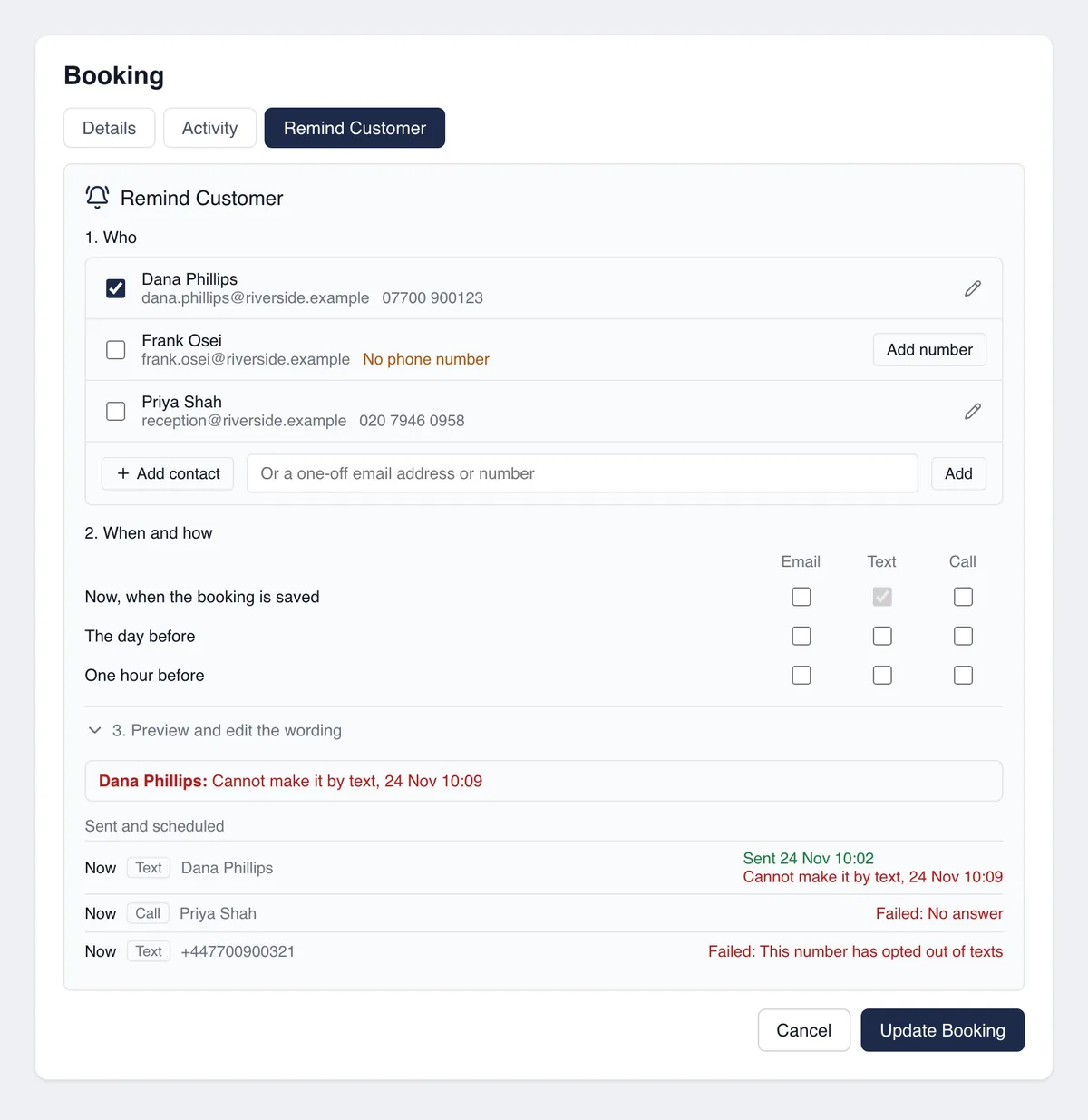
Under Sent and scheduled, each reminder shows the answer given to it. Confirmed means yes. Cannot make it means no. Replied shows the customer's own words when they texted something else.
- 04
Act on a no
The booking is never changed automatically. If a customer says they cannot make it, the booking stays exactly as it was until you move or cancel it.
Good to know
- ✓The person who created the booking gets an email as soon as the customer answers, and the answer is added to the booking's activity.
- ✓A text reply does not have to be exactly YES or NO: "Yes please", "Yep", "OK" and "No, sorry" are understood.
- ✓A reply is matched to the latest reminder text sent to that phone in the last 7 days. If one person has two bookings close together, check which one they mean.
- ✓If nobody presses a key on a call, no answer is recorded. That includes calls that reach voicemail.
- ✓If the customer changes their mind and answers again, the newer answer replaces the older one and you are told again.
Still stuck?
Send us the project and the step you reached, and we’ll take a look.